The Do’s and Don’ts of Using Public Wi-Fi While Traveling
25 December 2025
Public Wi-Fi is a traveler’s best friend—until it becomes their worst nightmare. Whether you're in a cozy café in Paris, an airport lounge in Tokyo, or a bustling shopping mall in New York, free Wi-Fi can be a lifesaver. But is it safe? Not always.
Cybercriminals love unsecured networks, and if you’re not careful, you could be handing over your personal data on a silver platter. So, how do you enjoy the convenience of public Wi-Fi without putting your personal information at risk? Let’s break down the do’s and don’ts of using public Wi-Fi while traveling. 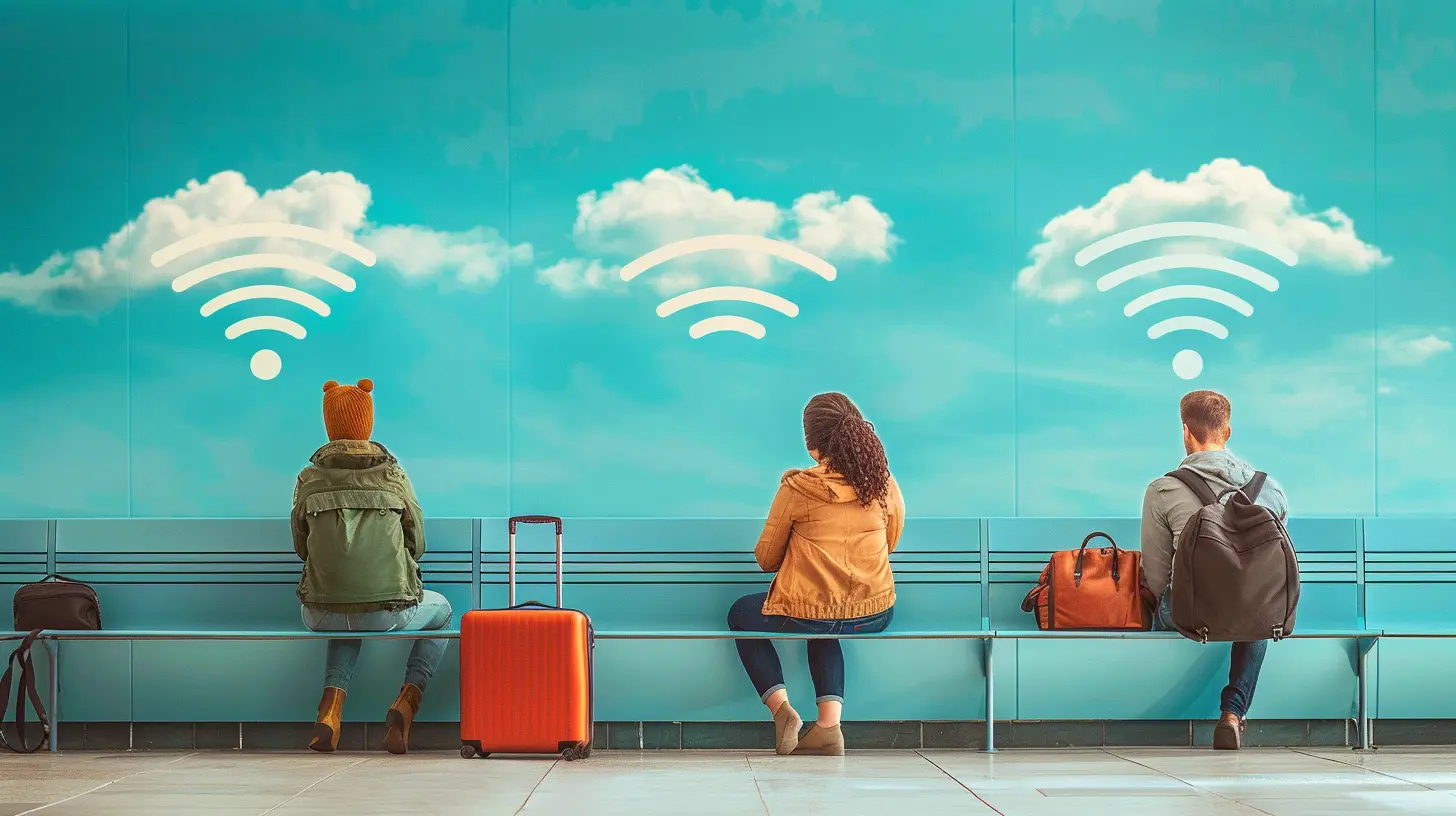
✅ The Do’s of Using Public Wi-Fi
If you must connect to public Wi-Fi, follow these best practices to stay safe while browsing.1. Use a VPN (Virtual Private Network)
A VPN is your best defense against hackers on public networks. It encrypts your internet connection, making it nearly impossible for cybercriminals to steal your data. Think of it as a personal bodyguard for your online activity—it keeps snoopers at bay.Before you travel, install and subscribe to a reputable VPN service. Turn it on every time you connect to public Wi-Fi.
2. Stick to HTTPS Websites
Have you ever noticed the little padlock icon in your browser’s address bar? That’s a sign of an encrypted website using HTTPS. If a website only has "HTTP" (without the ‘S’), steer clear—it’s an open invitation for hackers to intercept your data.A good rule of thumb: If the website doesn’t have a padlock, don’t enter any sensitive information.
3. Forget the Network When You’re Done
Public Wi-Fi networks often automatically reconnect your device, which means you might stay connected even when you’re not using the internet. This can leave you vulnerable to attacks.After using public Wi-Fi, go to your Wi-Fi settings and forget the network to prevent automatic reconnections.
4. Enable Two-Factor Authentication (2FA)
Even if someone steals your login credentials, enabling two-factor authentication adds an extra layer of security. Every time you log into an important account (like banking or email), you’ll need to verify your identity through a second method—usually a text message or authentication app.It’s like having a second lock on your front door. Even if a thief has the key, they still can’t get in.
5. Keep Your Software and Antivirus Updated
Hackers exploit outdated software with known security vulnerabilities. Keeping your operating system, browser, and antivirus software updated ensures you’re protected against the latest threats.Think of it like getting regular vaccinations—prevention is always better than cure. 
❌ The Don’ts of Using Public Wi-Fi
Now that you know what to do, let’s talk about the biggest mistakes travelers make when using public networks. Avoid these pitfalls at all costs.1. Don’t Access Sensitive Accounts
Checking Facebook or reading travel blogs is fine, but logging into your banking app or entering your credit card details on public Wi-Fi? That’s asking for trouble.If you must check sensitive accounts, switch to your mobile data or use a VPN.
2. Don’t Ignore Network Names
Not all Wi-Fi networks are what they seem. Hackers often set up fake Wi-Fi hotspots with names like “Free Airport Wi-Fi” to trick unsuspecting travelers. Once you connect, they can intercept everything you do online.If you’re unsure about a network, ask a staff member or official source for the correct name. Don’t just connect to any “free Wi-Fi” you find.
3. Don’t Leave Your Bluetooth or File Sharing On
Leaving Bluetooth or AirDrop on in public is like leaving your front door wide open. Hackers can send malicious files, gain access to your device, or track your location.Before connecting to public Wi-Fi, turn off Bluetooth, AirDrop, and any file-sharing settings. This simple step can save you from serious security risks.
4. Don’t Use the Same Password Everywhere
If you use the same password for multiple accounts, you’re rolling out the red carpet for hackers. All they need is one stolen password to access your emails, social media, and even banking accounts.Use a password manager to generate strong, unique passwords for each account. Bonus tip: Enable 2FA for an added layer of protection.
5. Don’t Download or Install Anything
Downloading files or installing software on public Wi-Fi is risky business. Hackers can inject malware into legitimate-looking downloads, infecting your device with spyware or ransomware.Stick to basic browsing and avoid downloading files unless you’re connected to a secure network. 
Bonus Tips for Extra Security
✔️ Use Mobile Data for Sensitive TasksWhen in doubt, use your cellular data instead of public Wi-Fi. Mobile networks are generally more secure than open Wi-Fi connections.
✔️ Create a Personal Hotspot
If you’re traveling with a mobile data plan, consider creating a personal hotspot from your phone. This way, you get Wi-Fi access without the security risks of public networks.
✔️ Log Out After Browsing
Always log out from important accounts when using public Wi-Fi. Staying logged in makes it easier for hackers to access your information if your session is hijacked. 
Final Thoughts
Public Wi-Fi is incredibly convenient, but it comes with risks. While it’s tempting to connect to free networks when traveling, bad actors are lurking, waiting for unsuspecting users to slip up.By following these do’s and don’ts, you can enjoy the benefits of public Wi-Fi while keeping your personal information safe. Remember—just because it’s free doesn’t mean it’s safe. Stay smart, stay secure, and enjoy your travels without worrying about cyber threats!
all images in this post were generated using AI tools
Category:
Travel SafetyAuthor:

Reed McFadden
Discussion
rate this article
2 comments
Clementine Thompson
Secure your connection, uncover secrets.
February 7, 2026 at 4:37 PM
Reed McFadden
Absolutely! Securing your connection is essential to protecting your data while using public Wi-Fi. Always use a VPN and avoid accessing sensitive information.
Astranor Ford
Great tips on navigating public Wi-Fi while traveling! It's so tempting to connect, but staying safe is key. I always make sure to use a VPN and avoid sensitive tasks. Thanks for the reminders! Can’t wait to explore my next destination with peace of mind. Happy travels!
December 31, 2025 at 5:18 AM
Reed McFadden
Thank you for your thoughtful comment! We're glad you found the tips helpful. Safe travels and enjoy your next adventure!